

Installation
For all Rust integrations, you will need
the
cargo-codspeed command to
build and run your CodSpeed benchmarksbencher compatibility layer:
Cargo.toml if you already have bencher installed:
codspeed-bencher-compat crate and rename it to bencher
in your Cargo.toml. This way, you can keep your existing imports and the
compatibility layer will take care of the rest.
Usage
Creating benchmarks
Let’s start with the example from thebencher documentation, creating a
benchmark suite for 2 simple functions:
benches/example.rs
Cargo.toml:
Cargo.toml
Testing the benchmarks locally
terminal
Use
--measurement-mode / -m to select the CodSpeed instrument:simulation(default): Runs benchmarks once on a simulated CPU for consistent measurements.walltime: Measures wall-clock time for real-world scenarios.memory: Benchmarks are run once using memory profiling to track heap allocations and memory usage.
cargo-codspeed reference
for more information.Running the benchmarks in your CI
To generate performance reports, you need to run the benchmarks in your CI. This allows CodSpeed to automatically run benchmarks and warn you about regressions during development. Here is an example of a GitHub Actions workflow that runs the benchmarks and reports the results to CodSpeed on every push to themain branch and every
pull request:
.github/workflows/codspeed.yml
Recipes
Running benchmarks in parallel CI jobs
With Rust, if you use multiple packages, a first sharding optimization is to split your benchmarks across these packages. For example, using Github Actions:Same benchmark with different variationsFor now, you cannot run the same benchmarks several times within the same run.
If the same benchmark is run multiple times, you will receive the following
comment on your pull request: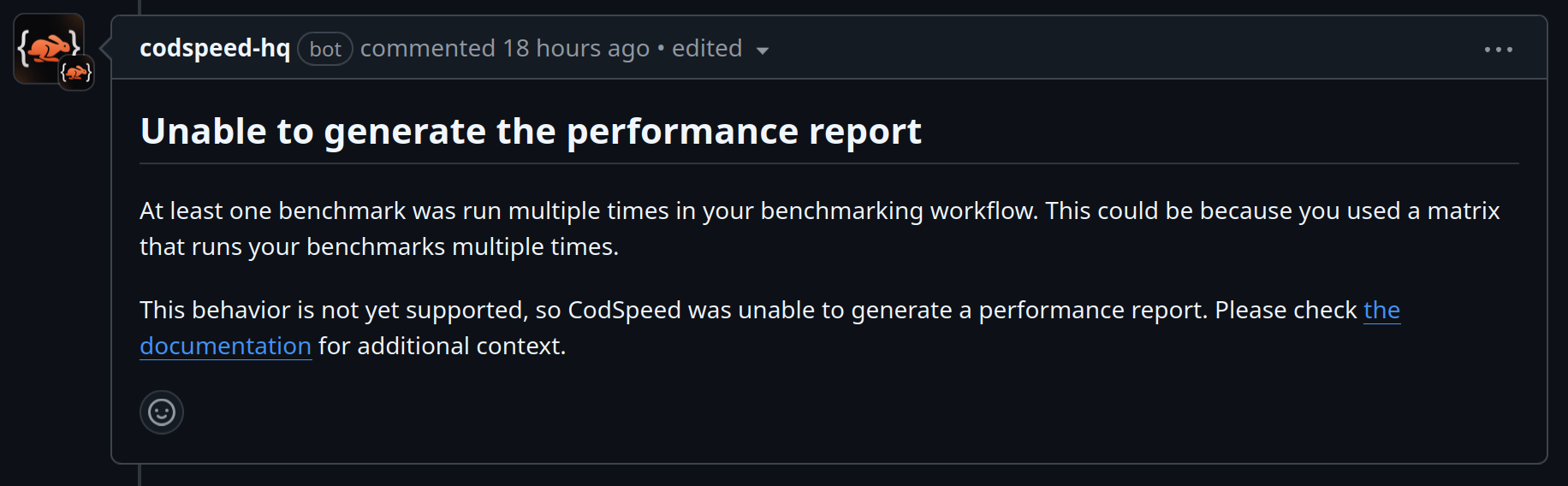
To combine measurement modes like simulation and memory, check out the
documentation on running multiple instruments
serially.