> ## Documentation Index
> Fetch the complete documentation index at: https://codspeed.io/docs/llms.txt
> Use this file to discover all available pages before exploring further.
> Learn how the CodSpeed metrics work
# Impact Metrics
## Benchmark performance impact
The performance impact denotes an improvement or regression in performance of a benchmark. It is
calculated by comparing the benchmark time measurement of the head commit with
the time measurement of the base commit.
$$
impact = \frac{speed - baseSpeed}{baseSpeed}
$$
A negative performance metric means that
the benchmark is slower than the previous commit. The closer its value is to
`-1`, the slower it is.
$$
-1 \lt impact \lt 0
$$
A positive performance metric means
that the benchmark is faster than the previous commit. Its value can go up to
$+\infty$ to denote massive speed improvements.
$$
0 \lt impact \lt +\infty
$$
Naturally, when the benchmark is as fast as the previous commit, the performance
metric is $0$.
## Regression threshold
On the settings page of a project, you can set a threshold for a regression to
be considered a regression. By default, this value is set to `10%` (which is
equivalent to `0.1`). The value can be set from `0%` to `50%` by an admin of the
project. More information about setting the threshold can be found in the
[customization documentation](/features/customization#regression-threshold).
Individual benchmarks can have their own custom regression thresholds that
override the project-level setting. See the
[customization documentation](/features/customization#per-benchmark-regression-thresholds)
for details on configuring per-benchmark thresholds.
## Commit performance impact
To get the overall performance impact of a commit, we take the geometric mean of
the benchmarks whose change exceeds their regression threshold (the "changed"
benchmarks). In that case, benchmarks within the threshold are not taken into
account.
Let $k$ be the number of changed benchmarks and $changedImpact$ their list of
impacts.
$$
commitImpact = \left(\prod_{i=0}^{k-1} \left(1 + changedImpact_i\right)\right)^{1/k} - 1
$$
> *For example, with impacts `[0.3, 0.3, 0.3, -0.11]` and a threshold of `0.1`,
> all four benchmarks exceed their threshold, so the overall commit impact is
> approximately `+0.20`.*
If no benchmark exceeds its threshold, we fall back to the geometric mean of
**all** benchmarks.
The overall commit impact reflects the aggregate story of the run. Regressions
above threshold are surfaced **independently** of this number: they are listed
in the report, trigger the performance status check to fail, and are flagged in
the pull request comment — even when the overall impact is positive.
We use the geometric mean rather than the arithmetic mean because it is less
sensitive to outliers and composes the way relative performance changes
naturally do.
## Baseline report selection
To create a performance impact, we need to compare the execution speed of the
benchmarks against a baseline of those benchmarks' execution speed. Depending on
the context of the run, the baseline report can be different.
A baseline only exists if the base branch (usually your default branch, e.g.,
`main`) already has CodSpeed runs. Run CodSpeed on `push` to your default branch
so every commit there is benchmarked. If CodSpeed runs only on `pull_request`,
there is nothing on the default branch to compare against, and pull requests
show no performance impact.
### Pull Request
When triggering a CodSpeed run on a pull request between a `head` branch and a
`base` branch, the baseline report will be the report of the latest commit of
the `base` branch with a CodSpeed run.
**Checked-out commit of a Pull Request in GitHub Actions**
By default, when using the
[`action/checkout`](https://github.com/actions/checkout) in GitHub Actions, the
checked-out commit of a pull request will be the
[merge commit](https://docs.github.com/en/actions/using-workflows/events-that-trigger-workflows#pull_request)
of the pull request. This means that GitHub will create a merge commit **M**
between the `base` branch and the `head` branch, and use it as the checked-out
commit.
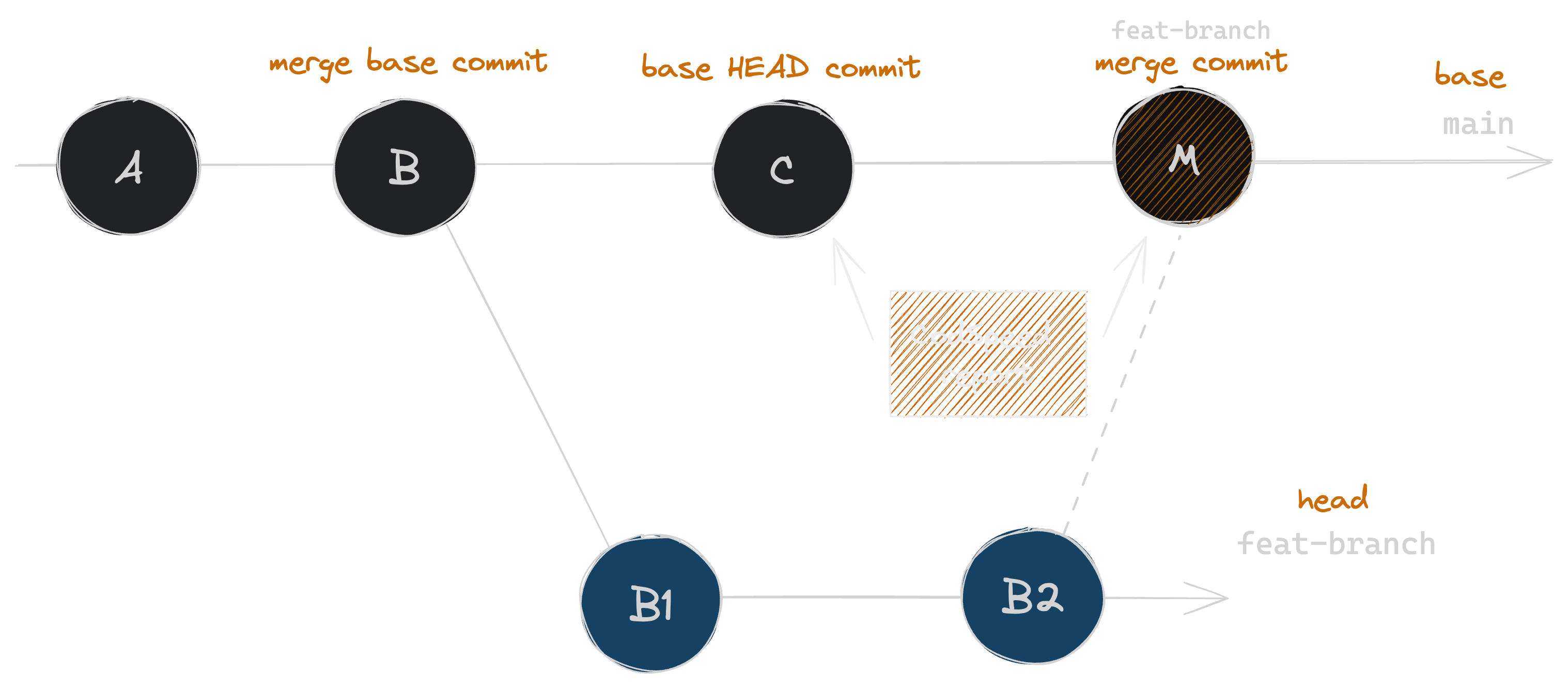 In this case, the report will be between the `HEAD` commit **C** of the `base`
branch and the merge commit **M**. The report will thus only include the changes
of commits **B1** and **B2**.
Every time a new commit is pushed on the `feat-branch`, the baseline report will
be updated to the latest commit of the `base` branch with a CodSpeed run.
This pull request base selection algorithm will only work on `pull_request`
event for GitHub Actions and `merge_request_event` for GitLab CI. If you run
CodSpeed on a different event, the branch base selection algorithm defined below
will be used instead.
### Branch
When triggering a CodSpeed run following a push on a branch, the baseline report
will be the report of the closest commit of the branch.
In this case, the report will be between the `HEAD` commit **C** of the `base`
branch and the merge commit **M**. The report will thus only include the changes
of commits **B1** and **B2**.
Every time a new commit is pushed on the `feat-branch`, the baseline report will
be updated to the latest commit of the `base` branch with a CodSpeed run.
This pull request base selection algorithm will only work on `pull_request`
event for GitHub Actions and `merge_request_event` for GitLab CI. If you run
CodSpeed on a different event, the branch base selection algorithm defined below
will be used instead.
### Branch
When triggering a CodSpeed run following a push on a branch, the baseline report
will be the report of the closest commit of the branch.
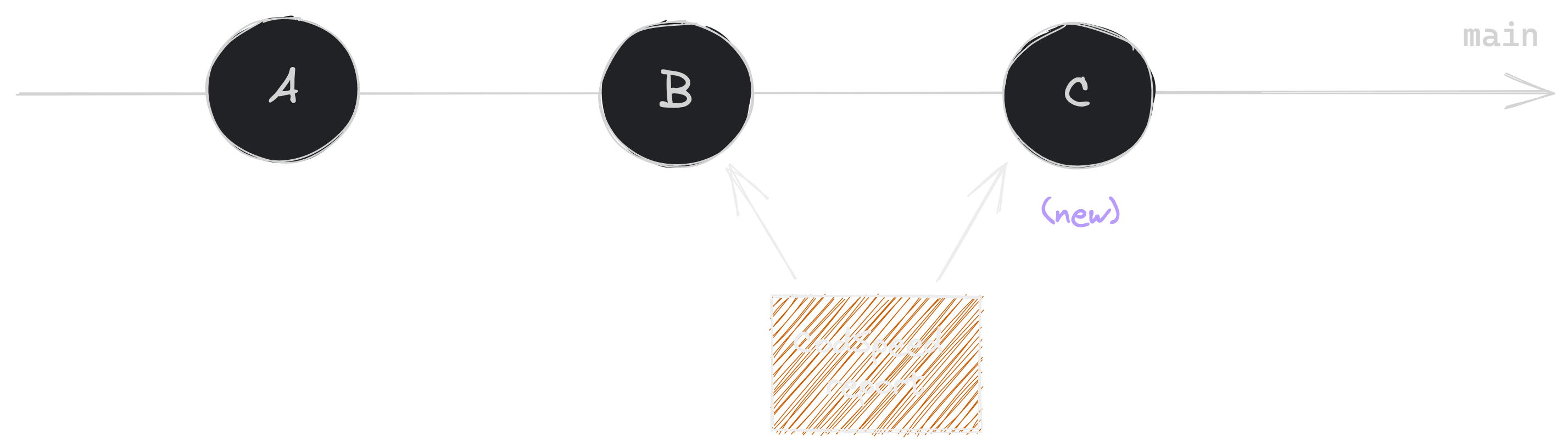 In this example, a report already exists for the commit **B** of the `main`
branch. A new commit **C** is pushed on the `main` branch. The baseline report
for **C** will be the report of the commit **B**.
## Performance impact Gauge
The performance impact gauge is a visual representation of the performance
impact, displayed in multiple places of the CodSpeed UI.
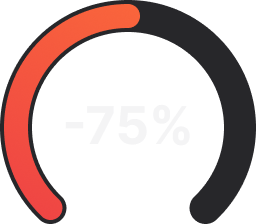
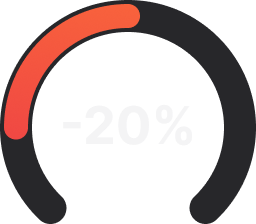
Some examples of the gauge with their corresponding impact values:
To make it easier to spot regressions and improvements, the mapping between the
actual performance impact value and the gauge is not linear.
## Next Steps
Configure GitHub branch protection to automatically block performance
regressions
Use flame graphs and profiling data to identify and fix bottlenecks
Fine-tune regression sensitivity for your project's requirements
Build a robust benchmark suite to catch performance issues early
In this example, a report already exists for the commit **B** of the `main`
branch. A new commit **C** is pushed on the `main` branch. The baseline report
for **C** will be the report of the commit **B**.
## Performance impact Gauge
The performance impact gauge is a visual representation of the performance
impact, displayed in multiple places of the CodSpeed UI.
Some examples of the gauge with their corresponding impact values:
To make it easier to spot regressions and improvements, the mapping between the
actual performance impact value and the gauge is not linear.
## Next Steps
Configure GitHub branch protection to automatically block performance
regressions
Use flame graphs and profiling data to identify and fix bottlenecks
Fine-tune regression sensitivity for your project's requirements
Build a robust benchmark suite to catch performance issues early
 -0.75
-0.75
 -0.2
-0.2
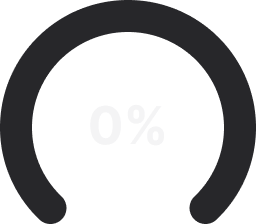 0
0
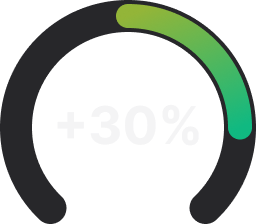 0.3
0.3
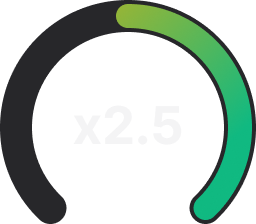 1.5
1.5